
If you have a smart TV that is getting into old age, you may find that your everyday navigation is becoming slower and slower. Even if the picture still looks great, having to wait for apps to load in order to watch your latest obsession can get quite tedious. You may not want to upgrade to a newer model, whether that's because you are on a budget or simply aren't ready to let go.
But don't worry, because we have a few tricks that will hopefully get your TV running a little faster. Much of this is good practice, even if your TV is spritely and new.
Without further ado, let's get into it.
Get rid of unused apps and clear your cache
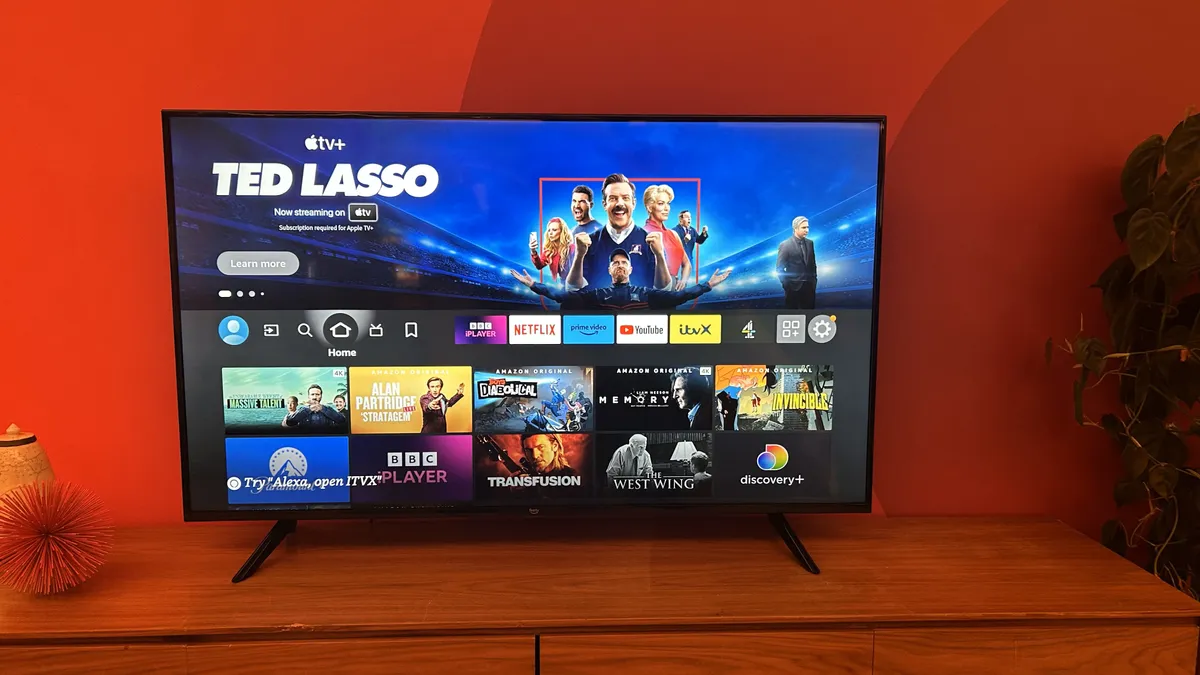
This is a great start to get your TV running a little faster, and it takes a matter of minutes.
A cache is a temporary storage area where data is kept for quick access, and it stores information from apps, websites and system processes to help them load faster when you turn the TV on. But if it gets too full, this can delay your system's processing and lead to buffering and lag.
To clear your cache, go to the settings menu and navigate to Apps or Storage. From there, you will be able to select individual apps and clear the cache on each.
You can also remove any unused apps on your TV to help speed up your experience. Still have that streaming platform downloaded that you haven't used in months? Get it out the way to get the most from your system.
Keep the firmware up to date
Getting a notification for an update may seem like a pesky pop-up, but outdated firmware can really slow down your TV. If your model still receives updates, it's best to install them as they fix bugs, add new features and improve overall performance.
You will be able to run these installations by going into the settings menu, and finding the option that says System Updates or something similar. The wording varies by brand, but it should be relatively straightforward to locate.
Give it a few minutes to do its magic, and your TV will hopefully run a little smoother.
If your TV is more than a few years old, it may no longer receive the latest updates. That's where the next option might be the best option.

Some people are very suspicious of TV software updates, and I totally understand why: there have been times when updates have inadvertently made picture quality worse, slowed down performance, and even bricked TVs entirely.
The solution, I think, isn't to never update your TV, but to instead only install updates that are verified as 'safe'.
To do this, turn off 'Automatic Updates' so that your TV doesn't install new software as soon as it becomes available, and instead manually check for updates periodically.
Once new software becomes available, check the software number, whack it into Google, and check when it became available and whether there are negative reports about it.
If it's a month or so old and there are no complaints, it should be safe to install – and you could get a faster, better-performing TV when you do so.
Add a streaming stick
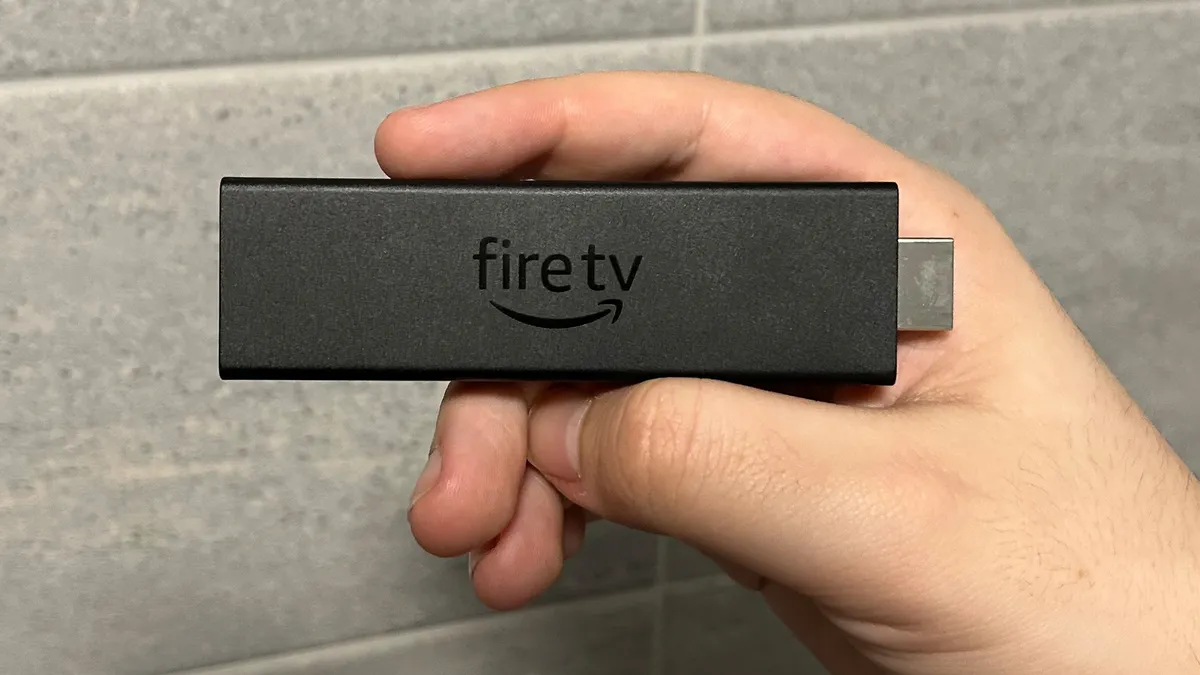
It costs a bit of extra cash, but adding a streaming stick or box to your set-up is the fastest way to give your old smart TV a facelift. You can simply plug your streaming device into the TV's HDMI port, and it will take over all the streaming functions.
This then gives you access to a range of streaming services that your old TV's platform may no longer offer. That includes Netflix, Disney+ Apple TV, and Amazon Prime Video.
There is a wide selection of models to choose from, and we have found the cream of the crop in our best streaming devices guide. Our top recommendation comes with the Award-winning Apple TV 4K, which we rated highly for its excellent picture and expressive sound. You can currently pick it up for about £149 / $149 / AU$219.
If you are looking for a budget option, then our top pick is the Amazon Fire TV Stick 4K Max (2nd gen). This five-star streaming stick is available for £70 / $60 / AU$120. The even cheaper Amazon Fire TV Stick HD is also on the cards, costing £35 / $35 (around AU$67). We have not reviewed this model yet but, if it's performance is anything like its more expensive sibling, then it should be a great upgrade.
Connect via Ethernet

Another reason your TV might be running slow is an issue with your wi-fi. If your TV is on the older side, then it may be running outdated wi-fi hardware that cannot reach the highest router speeds. That often leads to slow loading time and buffering which quickly becomes tedious.
Connecting an Ethernet cable from your router to your TV can speed this up, though. While using wi-fi is the more convenient option thanks to its wireless nature, using Ethernet is more reliable because of its direct connectivity.
You might well have a suitable Ethernet cable knocking around in your house already, but they are readily available to buy if you need to add one to your collection.
Re-organise your home screen

If none of that has helped, you can also maximise the efficiency of your home screen by making your most-used apps easier to access. Instead of scrolling through reams of apps and having to put up with buffering, you can pin your favourite ones to the home screen so you can get to them in a few clicks.
The way to do this differs by brand. Some require you to long-hold the app and pin it from there, or you may have to venture into the settings menu.
It can also help make your TV's home screen feel more personalised, creating a more modern overall look.
MORE:
These are the best streaming devices
Here are the best TVs
And check out the best budget soundbars on the market

