How to build a NAS to store your music, and at least some of all you need to know about RAID and backups
You know Parkinson's Law? The one that says 'Work expands so as to fill the time available for its completion'? Well, the same's kinda true when it comes to storing music – however much storage you have, the size of your music collection will expand to fill it before you know what's happened.
And if, like me, you find yourself getting antsy when you're up to much more than 60% of the available space being filled, that means it's going to be time to get yourself some more storage.

So it was that, little more than a year on from my last great NAS-building adventure, my 2TB NAS drive was beginning look a bit on the full side, and it became clear that a deep breath and another project was in the offing.


What spurred me on was the announcement of the new NAS-optimised Red drives from Western Digital.
They're designed to run to run 24/7 in the high temperatures often found inside NAS housings, handle the noise and vibration found in multi-drive arrays, and to give the user an easy time should a problem occur, as well as speeding up any recovery required.
Reading that news, I found myself thinking 'NAS' again, and determined to build something with sufficient capacity to keep me futureproofed for a while.
That meant four drives to offer a variety of RAID options – more on that in a moment –, and that meant a new enclosure to supplant my existing D-Link cheapie, still doing solid work but grinding away slightly wheezily in its location hidden away in a cupboard.
And before we go any further, I have to point out that what I'm running is a dedicated music system, rather than one set-up to stream music/movies/pictures and also provide back-up for the computers on the network.
Why? Simply because I don't watch enough TV to merit a multimedia set-up, am quite happy to load up a Blu-ray on the rare occasions I want to watch a movie, and really think it's worth keeping the computer back-ups on a separate disc. Or preferably discs.
Choosing drives and enclosures
So, having decided it was time to upgrade, two questions: which drives, and which enclosure? It's possible to buy a complete NAS for plug and play operation, such as the WD MyBook World with which I started out, but for flexibility it's best to buy a separate enclosure and drives.

The enclosure is the physical 'box' you plug into your system, containing the Ethernet interface and the 'computer' to control the drives, which are mounted inside it.
Which enclosure? Well, people round here seem to like Synology a lot, but a DS411j (left) was going to cost me the better part of £300, or even more for the faster DS411+II.
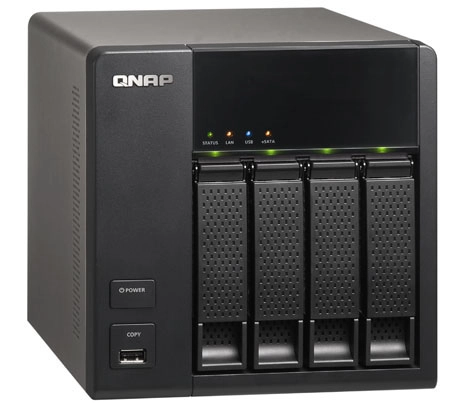
And asking around some friends in the know, and spending some evenings reading up, studying manuals and looking at various interfaces, led me to the QNAP TS-412 seen at the top of the page, which I picked up for under £250.

While I was waiting for it to be delivered, a large box containing four 3TB Reds had arrived from the very nice people at WD – now I really had no excuse for procrastinating.
It was time to get on and put the thing together.

It's really not that tricky, even for a fumblefingers like me: four sheet-metal caddies slide out of the QNAP – you just lift a latch and pull – and the drives are fixed to them using four little screws provided.
It's only a tad fiddly, the design makes it impossible to do it incorrectly, and when you slide the caddy back in the connections on the drive mate up with those on the enclosure.

By the way, if you're daunted by all this stuff, there's a number of retailers online who'll sell you an enclosure with your choice of drives installed, tested and even set-up with the configuration you want.
I had conversations with Ultimate Storage, which offers a free set-up and configuration service when you buy an enclosure and drives – I was told the procedure adds two or three working days to the order time, as the discs have to format and then initialise in your chosen RAID configuration.
As an example, the grand total for a QNAP TS-412 fitted with four 1TB WD reds, giving a total or 2-4TB of storage (depending on configuration) was around £650, whereas the same housing and drives from Amazon was around £575.
The same set-up using a Synology DS411j would be around £610 from Amazon.

Anyhoo… Discs loaded, the QNAP was powered up, hooked up to the network and the mains, and the supplied QNAP Finder app (above) found it on the network and led me through the initial set-up. Decide on a name for the server, change the admin password, stuff like that, and off it went checking and formatting the discs.

A few hours later, a long beep signalled all was done.
RAIDers of the (hopefully not) Lost Data
Well, that bit was easy – now for the RAID stuff…
And here we take a short diversion into the wonderful world of RAID: those in the know look away now, because this is going to be really basic stuff.
RAID stands for Redundant Array of Independent Disks, and what it isn't is a back-up system.
While it's designed to spread your data over multiple hard disks, so that in case of failure it's possible to recover the data, if the software in the NAS administering the array – or the hardware RAID controller – fails, there's no guarantee you can retrieve what's on the disks.
No subsititute for back-up
So the point to take from this is that even if you have a RAID set-up on your NAS, you really need at least one entirely separate back-up – as in a second NAS, or an offboard HDD able to contain everything on your main NAS.

And you need to make sure you either have an automatic back-up strategy in place – as shown above, my second storage kicks in at 1am each morning, and copies over any changes made on the main NAS since the last back-up – or are scrupulous about doing manual back-ups.
After all, you really don't want to spend ages re-ripping or re-downloading your entire collection.

RAID, then. The simplest version is RAID 0 (left), or no RAID at all. The advantage is that you get the full capacity of the disc(s) you have installed – so four 1TB drives will give you 4TB of space – but the disadvantage is that if one drive fails, you'll lose all the data.

RAID 1 (right) duplicates the data between two hard drives to provide disk mirroring. So install two 1TB hard drives and format as RAID 1, and you get a total capacity of 1 TB – or install four 1TBs and you get 2TB – but with the reassurance that, if one drive fails, the data is recoverable.
RAID 2 and 3 involve synchronising the rotation of the disks in the array, and storing sequential bits on successive drives.
The main difference between the two is how the parity data - used to check discs are storing the correct data - is stored: across the drives in RAID 2, and on a dedicated parity drive in RAID 3.
The same dedicated parity drive is used in RAID 4, which allows the other drives to spin independently - the problem, of course, is that the parity drive performance dictates how the whole array will perform. And if the parity drive fails…

The next commonly used configuration is RAID 5 (left), requiring at least three discs, which distributes parity data – used to check discs are storing the correct data – across the three drives, and can tolerate the failure of one drive while still offering recovery.
The capacity offered by our three 1TB drives in RAID 5 would be 2TB; four 1TBs will give you 3TB.

RAID 6 (right) requires at least four drives, and can tolerate two of them failing, but again will offer 2TB of capacity from four 1TB drives.

As an alternative, you could configure a four-or-more-drive system as RAID 5 with a hot spare (above), meaning the array runs RAID 5, but one drive is kept unused, ready to kick in should one of the three active drives fail.
Being a bit 'belt and braces' when it comes to this stuff, I'd opted for the RAID 6 approach, and set the QNAP chugging to set up the array. This takes a long time – a day or so in the case of the 4 x 3TB set-up I was using – and in the meantime two things happened to cause a rethink.
One was a discussion on the whathifi.com forums suggesting that RAID 6 would be working the QNAP's processor hard, and that RAID 10 would be a better bet; the other was a power interruption during the formatting process sufficient to set me back to the 'install the drives and re-initialise' stage. Sigh…

So, RAID 10 (left) it would be, in which data is striped across two discs and mirrored to the other two. It can stand two discs failing, gives the same capacity as RAID 6, and avoids – so I'm told – hammering the processor so hard, thus giving better performance.
Of course, people will argue – until the cows have not only come home but been served up with cheese, lettuce, pickle and special sauce, all on a sesame-seed bun – about which RAID array is the best. Everyone seems to have their own preference, and a willingness to tell you that whatever you've done isn't the way to do it.
And of course if I were running a NAS enclosure with greater processing power, the decision might be entirely different – but then moving up the QNAP range to a suitable 'box' would have meant doubling the budget for the enclosure.
That may be justified were the NAS serving multiple PCs simultaneously in a home office environment, but the most this one's going to be asked to do is run music to two network players at once – there are only two of us in the house, after all.
The upshot of all of which is that at some point I had to stop reading and listening to all the arguments, and actually get on with building the thing – so RAID 10 it was.
Along with a suitable offboard back-up strategy (did I mention that's quite important?), it seemed to offer the best compromise for my needs. And at least if I'm wrong somewhere down the line, I'll have all my music backed up onto other devices, and I can rebuild the NAS with whichever RAID configuration is flavour of the month then.
OK, so I only get 6TB – only! – of storage from my 4 x 3TB drives, but a) it appeals to the pessimist in me, and b) 6TB is still three times what I had before.
Or, to put it another way, four times the space my music library currently occupies.

Phew! The only downside, I'm informed, is that writing is slightly slower, which could explain why it took several days to copy my music from old NAS to new one. Or that could be down to a slightly labyrinthine network set-up at the time of copying – it's since been tidied.

Fortunately I set up an old netbook – time wasn't of the essence – to run the MuCommander copy software, meaning at least I could keep on working on my MacBook.
Meanwhile a combination of watching the NAS remotely in a window on my office Mac via QNAP's Web File Manager (below), and a wife at home on leave from work, and thus able the click the 'retry' button on the netbook on the couple of occasions the copying stalled, meant it didn't take any more than – well, a few days, anyway!
At least it's a job you only need to do once, and while this part of the set-up was grindingly slow, subsequent uploads are considerably faster than they were with my old D-Link running 2TB Seagates, and the QNAP enclosure runs sufficiently cool and quiet to enable it to be used in the main listening room.
By comparison the D-Link often did an impersonation of a Phantom running its engines on full power waiting for the deck catapult to be fired, and so was banished in disgrace to a the naughty corner of a convenient cupboard.

Serving media is simple: the QNAP comes with a service called QPKG allowing you to load a selection of 'apps' according to your requirements, and I soon had the old familiar TwonkyMedia Server up and running in its latest form, and talking quite happily to the various media players in the house, which currently include an Onkyo TX-NR818 network receiver and a Naim NDS/555PS combination.

The NAS also allows me to access and administer the server remotely (from the office, should I want to), and even run it, or play content from it over the Internet, to portable devices wherever I happen to be.

So should I need some music for reviewing or listening when not at home or in the WHFSV listening rooms, I can play it via an iThing, or download it on my laptop and copy it to a USB stick to slap into the front of whatever's being tested or listened to. Neat.

And I've done some other tweaks to the system: the occasional loss of connection between player and NAS, or iOS control device and player, looks likely to have been due to some IP address allocation weirdness in the Virgin SuperHub we have at home.
So that's now been switched into modem-only mode and an Apple AirPort Extreme (above) brought in as a router for Ethernet and Wi-Fi, connecting down to the Netgear switches hooking all the music components together.

All the hardware is connected using wired Ethernet and the trusty Netgear GS108 switches, with one switch dedicated to the main music server – the QNAP – and the media devices it streams to, leaving another switch to feed the home's computers and the back-up NAS units.
Wi-Fi is used for nothing more than access by assorted iPads, phones and an iPod Touch.
It's all very glitch-free now, and connections between controllers, network players and NAS are both rock-solid and much faster.
And the Naim's sounding addictively fab, but maybe that's another blog in the making!
(UPDATE I was right: it was. Here it is)
Now to get on with the task of ripping the rest of my music collection to the NAS: I reckon there are probably around 1500 CDs still to do, after which discs, inlay cards and booklets can be put into wallets, jewel-cases dumped, and the wallets put into storage.
Mrs E is already casting envious eyes over those big clear storage crates you see stacked up in the DIY sheds, so I think my days of CD clutter are severely numbered...
So, next...
Next job is to think about an uninterruptible power supply for the QNAP: one able to stop the NAS grinding to a halt if there's a power cut, and with a USB link to enable the QNAP to shut itself down on battery power should the worst happen. About £100, it seems, looking at QNAP's list of approved UPS devices...
(You see, even in this age of digital music, the possibilities for tweaking – and of course that bloke thing of buying stuff! – are still limitless)
Written by Andrew Everard
